
Brorosft MXF Converter for Mac is an ideal MXF to ProRes tool which can help you transcode MXF clips to ProRes 422, ProRes 422 HQ or 4444 for smoothly editing with Final Cut Pro 6/7/X.
MXF (Material eXchange Format) is a container format for professional digital video and audio media defined by a set of SMPTE standards. Many camcorders adopt such file as delivery format including Sony XDCAM, Panasonic P2, HVX200 and Canon XF300/XF305, etc. However, the issue is that MXF format is not supported by FCP (6/7/X).
If you are searching online, you will get to know that the easy workaround to make MXF videos editable in FCP is to encode MXF format to Apple ProRes which is a standard-definition and high-definition lossy video compression format developed by Apple. There are a lot of Apps on Google can help you achieve the goal. However, if you wanna get the best result after conversion, you’d better choose Brorsoft MXF Converter for Mac.
The program is a professional yet decent Mac MXF to ProRes Converter which can help you transcode mxf to ProRes 422, ProRes 422 HQ or 4444 for Final Cut Pro with several simple steps. Besides, the mac tool also supports professional encoders like Apple Intermediate Codec, DNxHD – ensuring maximum editing quality and efficiency when working with iMovie, Adobe Premiere or Avid Media Composer. Now, download the software on computer and follow the guide below to start conversion.
How to Encode MXF to Apple ProRes for editing
Step 1: Launch the program and click “Add ” button to import the MXF files to the top MXF to ProRes Converter Mac. Batch conversion is supported.
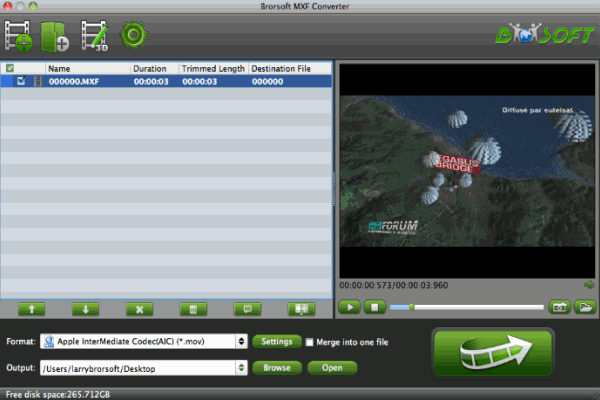
Step 2: Click on the “Format” bar and get the dropdown menu, then move your pointer to choose “Final Cut Pro> Apple PreRes 422” or “Apple ProRes 422 HQ” or “Apple ProRes 4444” as the output format. Sweet Reminder: FCP 7 older version only can work with Apple PreRes 422 MOV format.
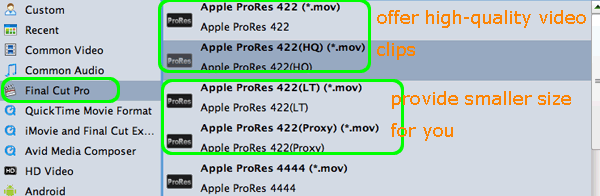
Tip: If you want to set some parameters for the output profile, you could click the “Settings” button to set the output bitrate, encode, frame rate, resolution, sample rate, channels, etc.
Step 3: Tap Convert button to start transcoding MXF to ProRes .mov for Final Cut Pro on Mac OS X.
After conversion, you can click “Open” button to find the .MOV videos which can be directly imported to FCP. Enjoy!
Read More:
How to Fix Corrupt MXF files
How to Edit Canon C300 Mark II videos in Premiere
How to Edit Canon C500 4K MXF files in Premiere
Much helpful. This post saves my life. I have many many many XAVC MXF files to deal with. Thank you again.
What would be your next topic next week on your blog.*;’:,